
Student User Guide
Instructions for signing up, logging in, and using the EduCert student dashboard
Student User Guide
Signup
-
Go to https://Educert.ng.
-
Scroll down the homepage. In the student’s card, find the option to create an account.
-
Fill in the required information:
- Unique ID: Format —
Exam_Year/LGA_Code/School_Code/Student_Number.
(At least one of 3 Unique IDs is required to continue.) - Admission number
- First Name (given name)
- Middle Name (if applicable)
- Surname (family name)
- Phone Number (active)
- National ID Number (NIN) (optional)
- Password and Re-enter Password
- Parent’s Email Address
- Guardian’s Email Address
- Unique ID: Format —
-
When done, click Create Account.
-
Check your email inbox for a verification email from EduCert. Click the link to verify and be redirected to login.
Login
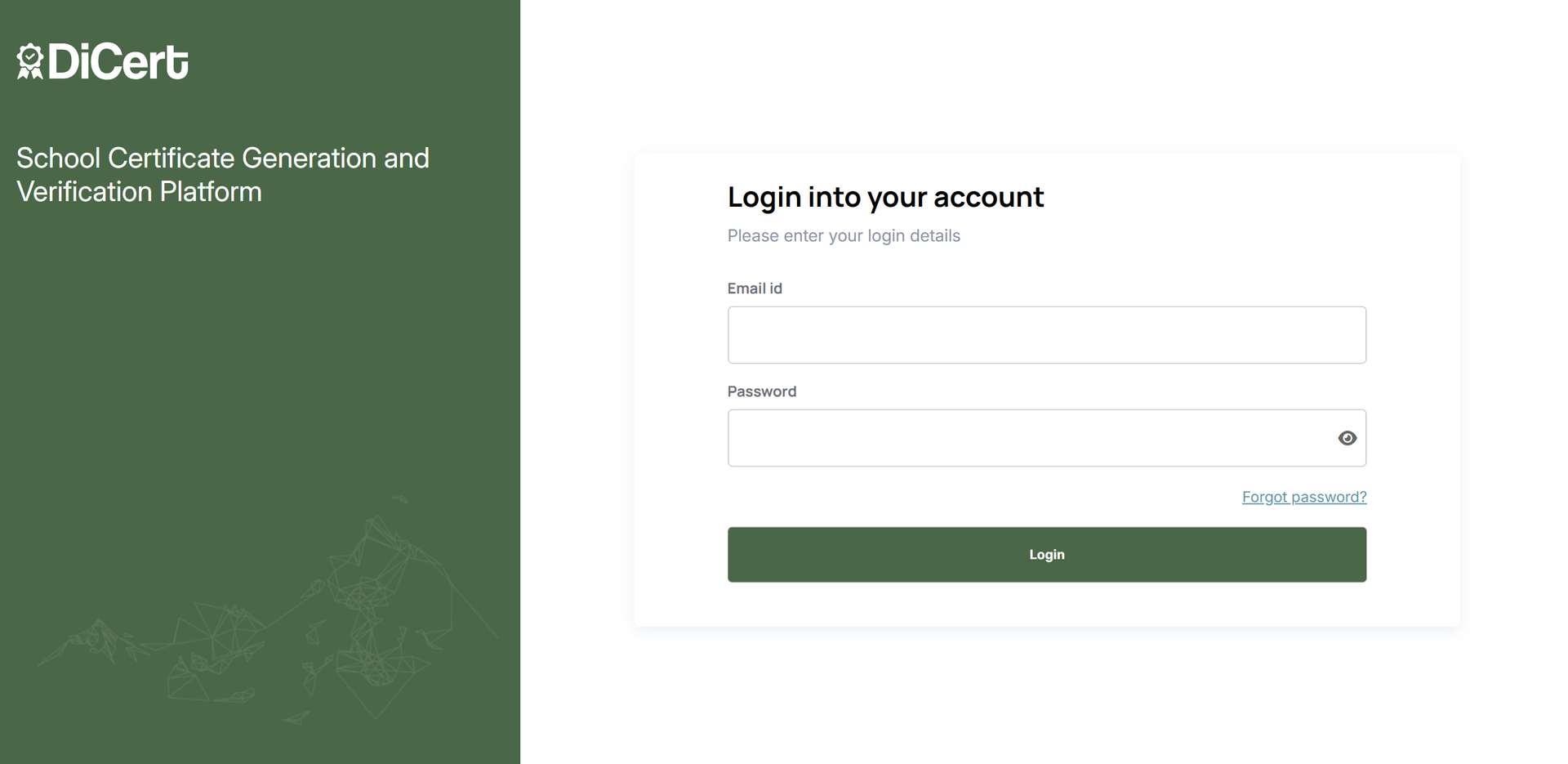
- Go to https://Educert.ng. At the top right corner of the homepage, find the sign-in option.
- Enter your email address and password. Click “Sign in”.
Dashboard Overview
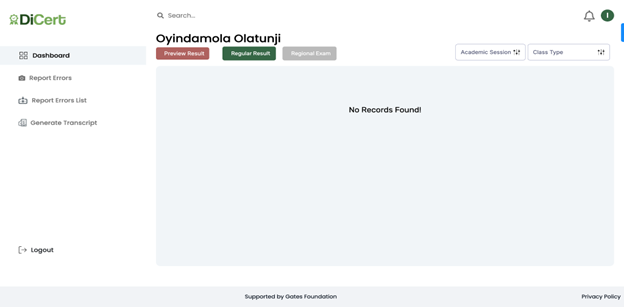
The Student Dashboard provides students with direct access to their academic records, certificates, and reporting tools. It is designed for simplicity, allowing quick actions such as viewing results, generating transcripts, and downloading or sharing certificates.
Navigation Panel
Located on the left-hand side, students can access the following key sections:
- Dashboard: The main page displaying the student’s academic record and certificate actions.
- Report Errors: Allows the student to report discrepancies in their academic data.
- Report Errors List: Displays all error reports the student has submitted for tracking.
- Generate Transcript: Enables the student to generate and download a transcript of their academic history.
Student Details View
At the top of the dashboard, the student sees their full name prominently displayed (e.g. “Adekunle Akinjide”). A table summarising their result entry is below that. This table includes the following:
- Serial Number (S/N).
- Student Name.
- Candidate Number.
Result Options
Buttons provided at the top of the student panel allow filtering by result type:
• Preview Result (Red): Possibly for draft or unverified results. • Regular Result (Green): Official academic results. • Regional Exam (Grey): Regionally coordinated results (if applicable). • Filters for Academic Session and Class Type help narrow down the displayed results.
Certificate Actions
To the right of the student’s result, there are three buttons offering certificate-related actions:
- Download Certificate: Save a copy of the certificate locally.
- Share Certificate: Generates a shareable link or email option.
- Save Certificate: Option to save the certificate securely on the platform (for easy access later).
Search
The Search Bar at the top of the Student Dashboard is designed to help students quickly locate academic records or specific certificate entries without manually browsing through a long list.
As the student types into the Search Bar, the Results Table dynamically updates in real time to match the search query:
- Log in to the EduCert platform as an examiner.
- At the top of the page, locate the Search Bar (top-left of the screen, beside the DiCert logo).
- Click the Search Bar and type in the search query. When you are done, press “Enter”. The system dynamically returns entries that match your search criteria.
- Once the desired result appears, click the “Preview” button to view the result details.
Filter
The Filter Feature on the Student Dashboard allows students to narrow down certificate records based on specific academic criteria, such as session or class type. This is particularly useful for students who have results or certificates across multiple sessions or education levels.
- Log in to the EduCert platform as a student.
- At the top-right corner of the dashboard, locate the Academic Session and/or Class Type dropdown.
- To filter by year, use the Academic Session dropdown to select the year (e.g. 2022).
- To filter by class, use the Class Type dropdown to select the year (e.g. 2022).
Selecting an option from either or both filters will refresh the table to show only matching results.
How to Preview a Certificate
- Navigate to the Student Dashboard.
- Locate the student name and corresponding certificate record.
- In the left corner of the dashboard, click “Preview Result”.
How to Download a Certificate
- Navigate to the Student Dashboard.
- Locate the student name and corresponding certificate record.
- Click the “Download Result” button next to the certificate. From the dropdown, select whether you want to download as PNG, JPEG, or PDF.
- The system will save the certificate to the device in your preferred format
How to Share a Certificate
- Navigate to the Student Dashboard.
- Locate the student’s name and corresponding certificate record.
- Click the “Share Certificate” button next to the certificate.
- The system will generate a shareable link to view the certificate
How to Save a Certificate
- Navigate to the Student Dashboard.
- Locate the student’s name and corresponding certificate record.
- Click the “Save Certificate” button next to the certificate. From the dropdown menu, select “Google Drive” as the storage option.
- The system will redirect and save the certificate to your Google Drive account.
How to Report Errors
- Navigate to the Report Error page.
- Select the certificate with the error.
- Add a comment and upload the file containing the error.
- Click the Report Error button.
How to View Report Error Lists
- Navigate to the View Report Error List page.
- This page or section displays a collection of all errors that have been reported.
How to Generate Transcripts
- Go to Generate Transcripts page.
- Select school name, type, and session.
- Click Generate Transcript.
Logout
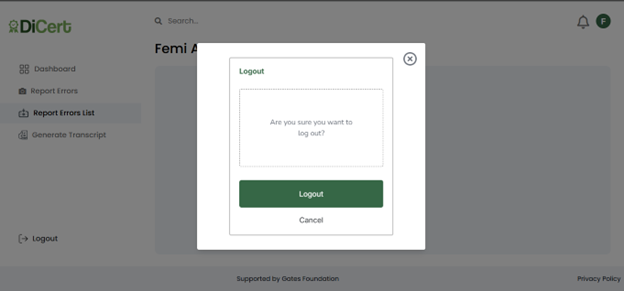
Click Logout from the top menu to exit your account.