
Examiner User Guide
Instructions for signing up, logging in, and using the EduCert Examiner Dashboard
Examiner User Guide
Signup
- Check your email for an invitation link sent by the platform admin (subject may contain “EduCert”).
- Click Complete Onboarding in the email. You’ll be redirected to the EduCert platform.
- Review your pre-filled biodata (school email, school name, full name, class name).
- Fill in the remaining required fields:
- Phone Number
- Password & Confirm Password
- Click Create Account. A confirmation message will appear when activated.
Login
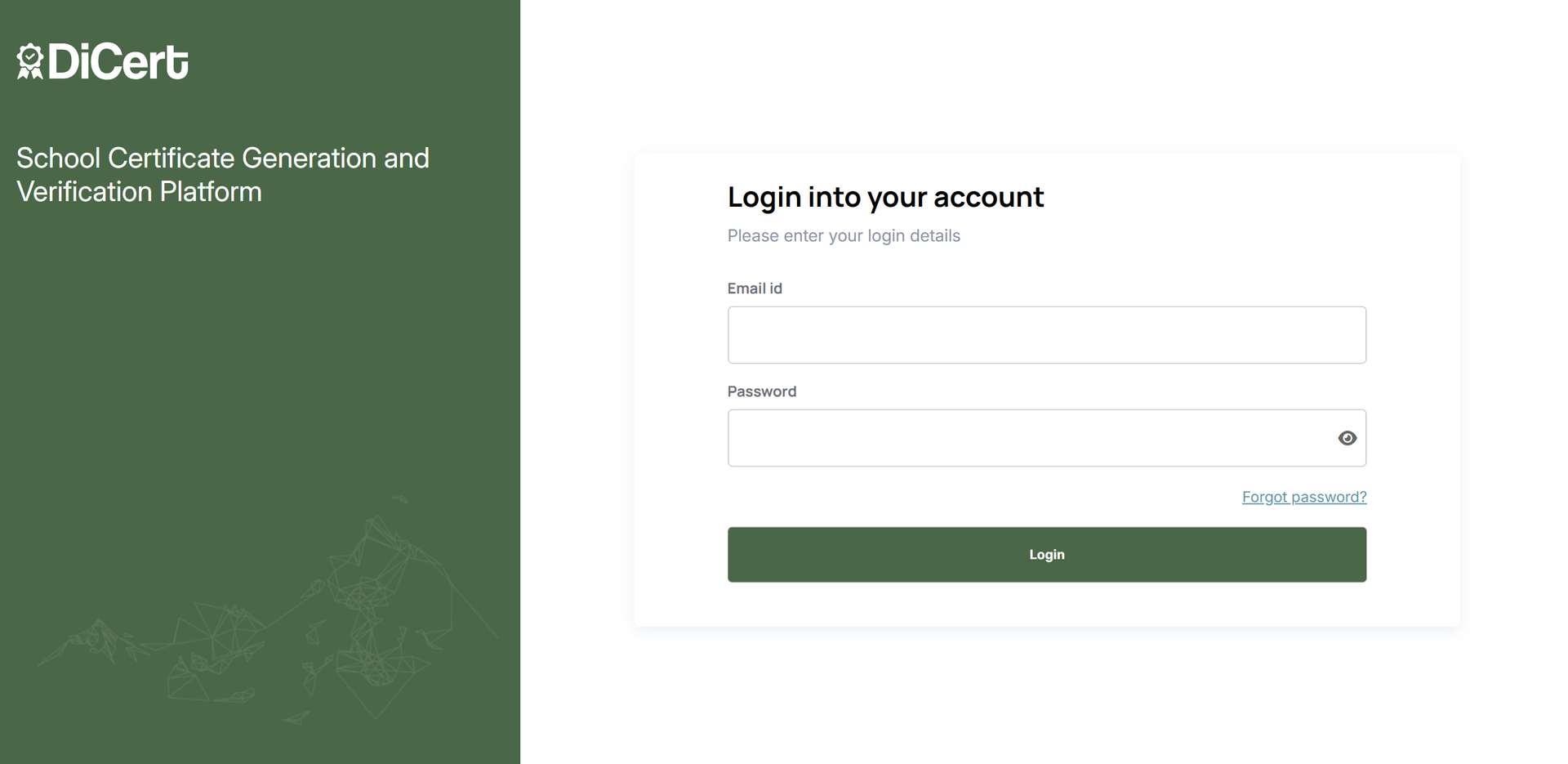
- Go to https://Educert.ng. At the top right corner of the homepage, find the sign-in option.
- Enter your email address and password.
- Click Sign In.
Examiner Dashboard Overview
After a successful login, you will be redirected to the Examiner Dashboard. From the dashboard, you have access to student records and result upload functionalities for a selected academic session and class type.
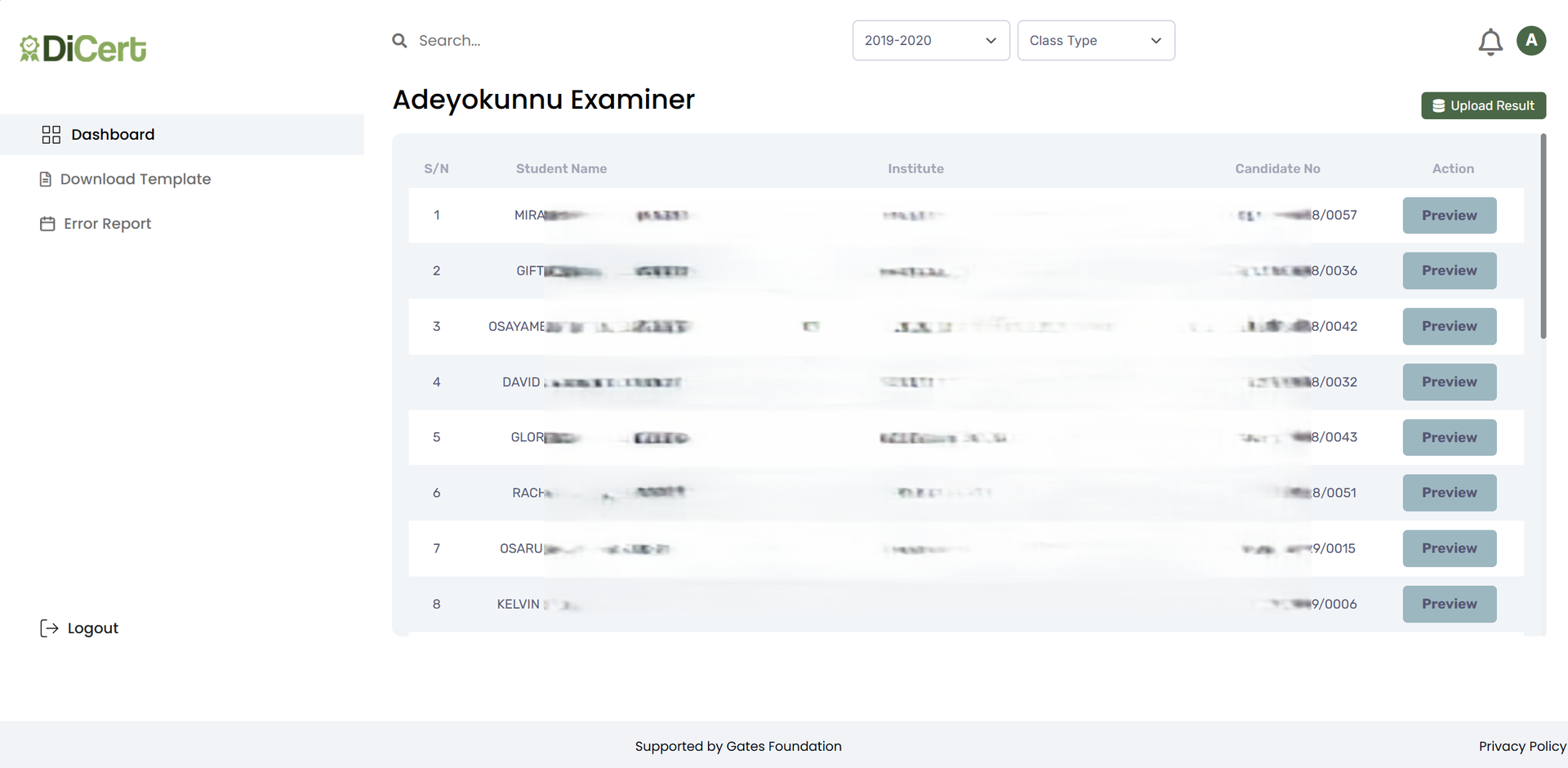
The Examiner Dashboard lets you view student records and upload results for a selected session and class type.
It’s divided into three sections:
1. Top Navigation
- Search Bar – Allows examiners to quickly search for a student by name or exam number.
- Dropdown Filters – .: You can filter by Academic Session (select the exam year/session) or Class Type (select the class level).
- Bell Icon – Used for notifications (e.g. system alerts, errors, or approvals)..
- User Avatar (E) – Access account settings.
2. Sidebar Navigation
- Dashboard - Returns the examiner to the dashboard home.
- Download Template - Provides a downloadable Excel or CSV format with required score columns for different school types.
- Error Report - Allows the user to report errors.
- Logout - Logs the examiner out of the platform. -Main Dashboard
Search for a Student
As an examiner, you can search for a student by name or candidate number by following these steps:
- Log in to the EduCert platform as an examiner.
- Locate the Search Bar at the top-left of the screen, beside the DiCert logo.
- Type the student’s name or candidate number.
- Press Enter – results will update instantly.
- Click Preview to view details.
Filter Records
The search feature allows examiners to quickly locate a specific student from the list without manually scrolling through the entire table:
- Log in to the EduCert platform as an examiner.
- At the top of the page, locate the Academic Session and/or Class Type dropdown.
- To filter by year, use the Academic Session dropdown to select the year (e.g. 2022).
- To filter by class, use the Class Type dropdown to select the year (e.g. 2022).
Notifications
The notification feature keeps examiners informed about important updates regarding their uploaded results. This ensures timely action on any issues flagged during the review process and helps maintain smooth communication with inspectors or system admins.
- Log in to the EduCert platform as an examiner.
- On the top right corner of the Examiner Dashboard, you will find a Bell Icon.
- This icon shows a badge or number whenever there are new or unread notifications.
Download Template
Before uploading student results, examiners must first download a standard template file in CSV format that contains the required structure for inputting scores. The template includes labelled columns such as Candidate Number, Student Name, Subject Names, and Score. Before uploading results:
- Log in to the EduCert platform as an examiner.
- On the left sidebar of the Examiner Dashboard, click “Download Template”.
- Click either “Download Middle Basic Template” or “Download Upper Basic Template”.
- The system will download an Excel (.xlsx) or CSV (.csv) file to your device.
How to Fill Out the Template
The search feature allows examiners to quickly locate a specific student from the list without manually scrolling through the entire table:
- Log in to the EduCert platform as an examiner.
- At the top of the page, locate the Academic Session and/or Class Type dropdown.
- To filter by year, use the Academic Session dropdown to select the year (e.g. 2022).
- To filter by class, use the Class Type dropdown to select the year (e.g. 2022).
Upload Results
The Upload Result feature allows you to upload new results into the platform:
- Log in to the EduCert platform as an examiner.
- On the top right corner of the Examiner Dashboard, click the “Upload Results” button.
- On the pop-up window, select the relevant Academic session and Class type.
- Upload the filled results template either with the Drag-and-Drop option or by browsing through your device.
- Click “Upload”.
Error Report
The Error Report page displays all the errors that students have reported regarding their results or certificates. The examiner can view the following:
- The details of each reported error.
- The student who submitted it.
- The status of the correction (e.g., Pending, In Progress, or Resolved).