
Super Admin
Guide for Super Admin features, management, and workflows on the EduCert platform.
Login
- Go to https://Educert.ng. At the top right corner of the homepage, find the sign-in option.
- Enter your email address and password.
- Click "Sign In".
Super Admin Dashboard
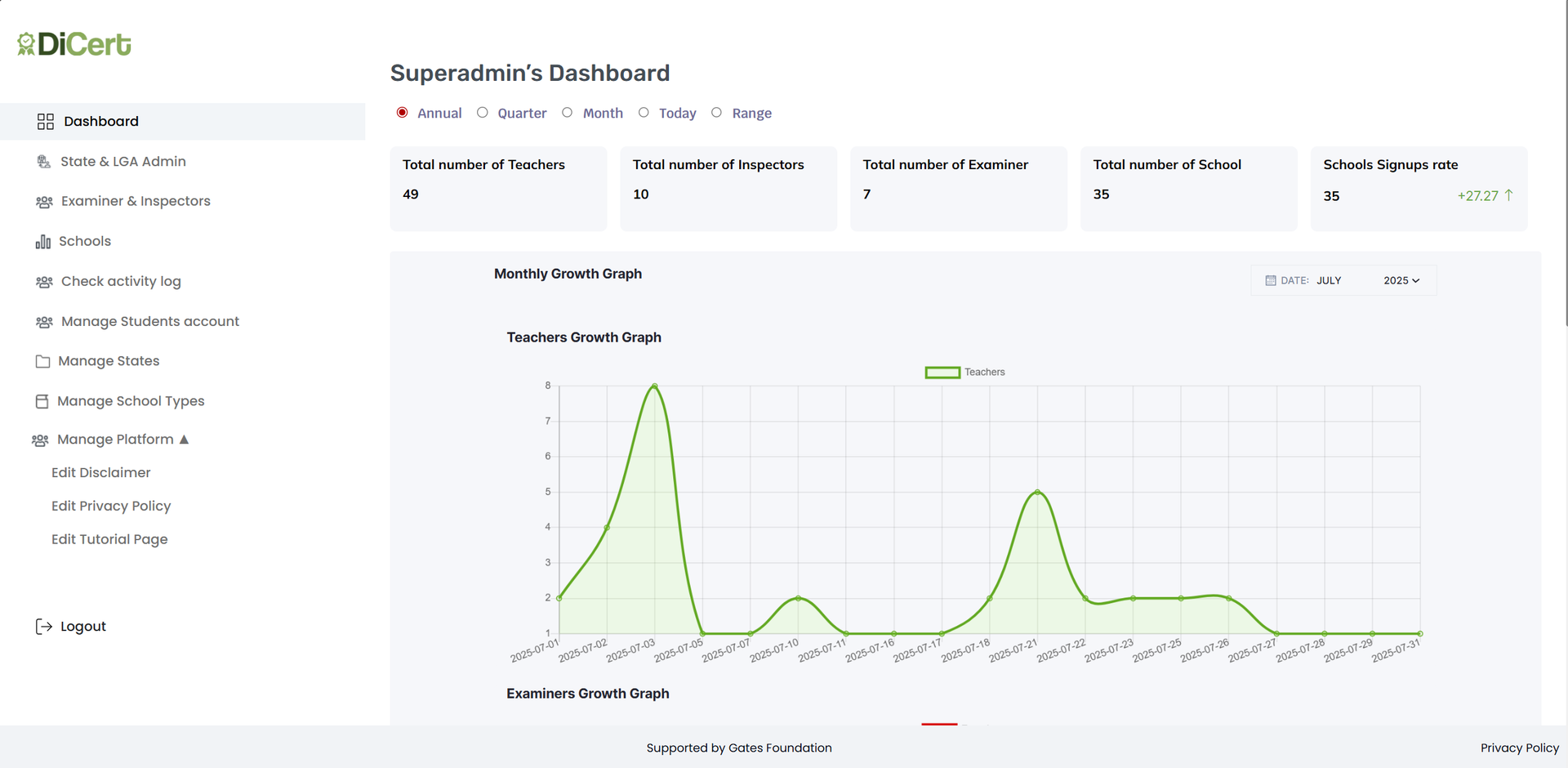
The super admin is the highest-level user on the EduCert platform. They oversee platform-wide activities and manage data access across all states and user categories. They also ensure that the system operates smoothly across schools, LGAs, and state agencies.
Super admins do not generate certificates directly but play a critical role in managing access, resolving escalations, and maintaining system integrity.
Data Filter Options
The super admin can filter dashboard data using the date range selector to review platform activity trends across different timeframes:
- Annual
- Quarter
- Month
- Today
- Custom Range
Dashboard Metrics
Based on the selected timeframe, the super admin can monitor the following indicators:
- Total Number of Teachers: Displays the total count of registered teachers across all schools.
- Total Number of Inspectors: Shows the number of state-level or LGA-level inspectors registered on the platform.
- Total Number of Examiners: Shows the number of examiners on the platform.
- Total Number of Schools: Shows the number of schools on the platform.
- School Signups Rate: Shows the growth rate in school registration, with percentage indicators and trend arrows.
State & LGA Admin Management – Super Admin Workflow
Overview
The State & LGA Admin page enables the super admin to manage administrative accounts across all states and their respective LGAs. This includes creating new admins, viewing existing ones, and performing key actions such as suspension or deletion.
How to View All State Admins
- Log in to the EduCert platform as a super admin.
- On the left sidebar of your dashboard, click "State & LGA Admin".
- Click the "State Admin" button on the right side of the page to see a list of all state admins.
How to Create a State Admin
-
Log in to the EduCert platform as a super admin.
-
On the left sidebar of your dashboard, click "State & LGA Admin".
-
On the right side of your dashboard, click "Create State Admin".
-
On the modal window, fill out the state admin’s information, including the following:
- Admin Name
- Admin Email
- State
- Password
-
When you are done, click the “Submit” button.
-
The state admin will receive an onboarding email and their name will appear under the state admins list.
How to Suspend a State Admin
- Log in to the EduCert platform as a super admin
- On the left sidebar of your dashboard, click “State & LGA Admin”.
- On your dashboard, you will see a list of state admins. Click the “Suspend” button next to the relevant state admin’s name.
- In the pop-up window, confirm that you want to suspend the selected state admin and click “Yes”.
How to View Suspended State Admins
- Log in to the Educert as a super admin.
- On the left sidebar of your dashboard, click "State & LGA Admin".
- Click the "Suspended Admins" button.
How to Delete a State Admin
- Log in to the EduCert platform as a super admin.
- On the left sidebar of your dashboard, click "State & LGA Admin"
- On your dashboard, you will see list of state admins. Click "Delete" next to the relevant state admin.
- in the pop-up window, confirm that you want delete the selected state admin and click "Yes".
How to View All LGA Admins
- Log in to the EduCert platform as a super admin.
- On the left sidebar of your dashboard, click "State & LGA Admin".
- Click the "LGA Admin" button on the right side of page, and you will see a list of all LGA admins on the platform.
How to Create an LGA Admin
-
Log in to the Educert platform as a super admin.
-
On the left sidebar of your dashboard, click "State & LGA Admin".
-
On the right side of your dashboard, click "Create LGA Admin".
-
in the modal window, fill out the relevant state admin's information, including the following:
- Admin Name
- Admin Email
- State
- LGA
- Password
-
When you are done, click "Submit".
The LGA admin will receive an email with instructions on how to complete their onboarding and activate their account. You will now see their name listed under the LGA admins.
How to Suspend an LGA Admin
- Log in to Educert platform as a super admin.
- On the left sidebar of your dashboard, click "State & LGA Admin".
- On your dashboard, you will see a list of LGA admins.click "Suspend" next to the relevant LGA admin's name.
- In the pop-up window, confirm that you want to suspend the selected state admin and click "Yes".
How to View Suspended LGA Admins
- Log in to the Educert platform as a super admin.
- On the left sidebar of your dashboard,click "State & LGA Admin".
- Click "Suspended Admins" button.
How to Delete an LGA Admin
- Log in to Educert as a super admin.
- On the left sidebar of your dashboard,click "State & LGA Admin".
- On your dashboard, you will see a list of state admins.click "Delete" next to the relevant LGA admin.
- In the pop-up window,confirm that you want to delete the selected LGA admin and click "Yes".
Examiners and Inspectors
Overview
The State & LGA Admin page enables the super admin to manage administrative accounts across all states and their respective LGAs. This includes creating new admins, viewing existing ones, and performing key actions such as Suspension or Deletion.
How to View All Examiners
- Log in to the EduCert platform as a super admin.
- On the left sidebar of your dashboard,click "Examiners & Inspectors".
- Click the "Examiner" button on the left side of the page, and you will see a list of all examiners on the platform.
How to Create an Examiner
-
Log in to the Educert platform as a superadmin.
-
On the left sidebar of your dashboard,click "Examiners & Inspectors".
-
Click the "Examiner" button on the left side of the page, and you will see a list of all examiners on the platform.
-
In the modal window,fill out the state admin's information, including the following:
- Admin Name
- Admin Email
- State
- Password
-
When you are done, click "Submit".
The examiner will receive an email with instructions on how to complete their onboarding and activate their account. You will now see their name listed under the examiners
How to Suspend an Examiner
- Log in to the EduCert platform as a super admin.
- On the left sidebar of your dashboard, click “Examiners & Inspectors”.
- Click the “Examiner” button on the left side of the page, and you will see a list of all examiners on the platform.
- Click the “Suspend” button next to the relevant LGA admin’s name.
- In the pop-up window, confirm that you want to suspend the selected state admin and click “Yes”.
How to view Suspended Examiners
- Log in to the EduCert platform as a super admin.
- On the left sidebar of your dashboard, click “Examiners & Inspectors”.
- Click the “Examiner” button on the left side of the page.
- Click the “Suspended Admins” button. You will see a list of suspended examiners on the platform.
How to Reactivate a Suspended Examiner
- Log in to the EduCert platform as a super admin.
- On the left sidebar of your dashboard, click “Examiners & Inspectors”.
- Click the “Examiner” button on the left side of the page.
- Click the “Suspended Admins” button. You will see a list of suspended examiners on the platform.
- Find the examiner you want to reactivate, and click the “Reactivate” button to activate the examiner’s account.
How to Delete an Examiner
- Log in to the EduCert platform as a super admin.
- On the left sidebar of your dashboard, click “Examiners & Inspectors”.
- On your dashboard, you will see a list of state admins. Click the “Delete” button next to the relevant state admin’s name.
- In the pop-up window, confirm that you want to delete the selected LGA admin and click “Yes”.
How to view all Inspectors
- Log in to the EduCert platform as a super admin.
- On the left sidebar of your dashboard, click “Examiners & Inspectors”.
- Click the “Inspectors” button on the left side of the page, and you will see a list of all LGA admins on the platform.
How to Create an Inspector Account
- Log in to the EduCert platform as a super admin.
- On the left sidebar of your dashboard, click “Examiners & Inspectors”.
- On the right side of your dashboard, click “Inspectors”.
- In the modal window, fill out the state admin’s information, including the following:
• Admin Name. • Admin Email. • State. • LGA. • Password.
- When you are done, click the “Submit” button.
The inspector will receive an email with instructions on how to complete their onboarding and activate their account. You will now see their name listed under the inspectors.
How to Suspend an Inspector
- Log in to the EduCert platform as a super admin.
- On the left sidebar of your dashboard, click “Examiners & Inspectors”.
- Click the “Inspectors” button on the left side of the page.
- On your dashboard, you will see a list of inspectors. Click the “Suspend” button next to the relevant inspector’s name.
- In the pop-up window, confirm that you want to suspend the selected state admin and click “Yes”.
How to view Suspended Inspectors
- Log in to the EduCert platform as a super admin.
- On the left sidebar of your dashboard, click “Examiners & Inspectors”.
- Click the “Inspectors” button on the left side of the page.
- Click the “Suspended Inspectors” button at the top right corner of the dashboard, and you will see a list of all suspended inspectors.
How to Reactivate a Suspended Inspector
- Log in to the EduCert platform as a super admin.
- On the left sidebar of your dashboard, click “Examiners & Inspectors”.
- Click the “Inspector” button on the left side of the page.
- Click the “Suspended Admins” button. You will see a list of suspended examiners on the platform.
- Find the inspector you want to reactivate, and click the “Reactivate” button to activate the account.
How to Delete an Inspector
- Log in to the EduCert platform as a super admin.
- On the left sidebar of your dashboard, click “Examiners & Inspectors”.
- Click the “Inspectors” button on the left side of the page, and you will see a list of inspectors on the platform.
- Click the “Delete” button next to the relevant inspector’s name.
- In the pop-up window, confirm that you want to delete the selected inspector and click “Yes”.
Schools
Overview
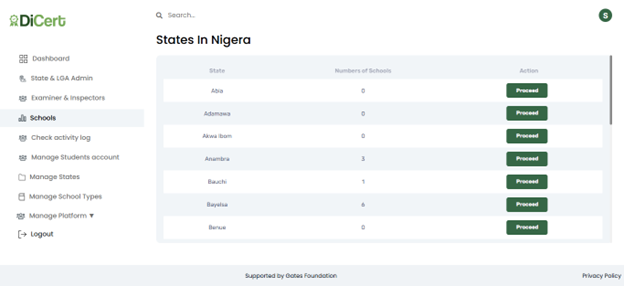
The super admin can access, edit and manage all schools on the platform, having similar capabilities as a school admin in all schools.
How to View Schools in an LGA
- Log in to the EduCert platform as a super admin.
- On the left sidebar of your dashboard, click “Schools”.
- Select the state that the LGA belongs to and click “Proceed”.
- Under the LGAs in the state list, click “Proceed” next to the desired LGA.
How to Manage a School
- Log in to the EduCert platform as a super admin.
- On the left sidebar of your dashboard, click “Schools”.
- Select the state that the school belongs to and click “Proceed”.
- Select the LGA that the school belongs to and click “Proceed”.
- Select the desired school and click “Proceed”.
School's Dashboard
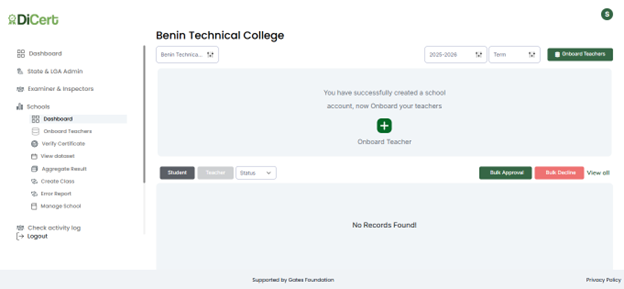
Onboard Teachers
- Click “Onboard Teachers”.
- In the modal window, fill out the teacher’s information, including the following:
• Name. • Email Address. • Class Type. • Sub Class.
- When you are done, click the “Onboard Teachers” button.
- The teacher will receive an email with instructions on how to complete their onboarding and activate their account. You will now see their name listed under the selected class.
Verify Certificate
- Click “Verify Certificates”.
- In the modal window, select the following:
• State. • School. • Admission Session. • Term.
- Enter the relevant student’s admission number.
- Click “Verify Now”.
View Dataset
- Click “View Dataset”.
- Select a class.
- View the uploaded result data for that class.
Aggregate Results
- Click “Aggregate Results”.
- Select the preferred class. This opens a detailed view showing a table of subjects and their corresponding aggregate scores.
- The table displays the subject name and aggregate score.
- Use the vertical scroll bar to browse through all available subjects and scores.
- To return to the Main Dashboard, click the “X” (close) button in the top-right corner of the pop-up panel.
- Click the “X” at the top-right of the modal window to return to the Main Dashboard.
Create a Class
- Click “Create Class”. A form window will pop up for you to fill in the class details, including the following:
• Class Type: Select from the dropdown (TVET 1, BECE, etc.). • Class List: A to E. • Academic Year: Choose the academic session (e.g. 2025–2026). • Sub-Class Name: Enter a unique subclass name. • Teachers Assigned: Select one or more teachers from the dropdown.
- Click the “Add Teacher” link below the Teachers Assigned dropdown if the teacher you are looking for is not listed. This redirects you to the Onboard Teachers workflow. Once the teacher is added, return to this form and continue creating the class.
- After filling in all fields, click the “Create Class” button to save the class. You will get confirmation once the class is successfully created.
Error Report
On this page, the super admin reviews and manages all the error reports that students submit. The super admin is responsible for verifying whether the reported error is valid and acting when necessary.
The error report table includes the following columns:
- Student Name: Name of the student who submitted the report.
- Email: Student’s email address.
- Certificate: The type or name of the certificate/result.
- Error: The actual error message that the student submitted.
- Status: Current status of the error (e.g. Pending or Resolved).
- Action: A button to take action on the report.
For each pending report, there is a “Resolve” button. The following happens when the super admin clicks the button:
• A modal opens, allowing them to confirm and process the correction. • Within the modal, click “Resolve Report” to finalise the update. • Once submitted, the status is updated from Pending to Resolved.
Manage a School
How to Check the Activity Log:
- Log in to the EduCert platform as a super admin.
- On the left sidebar of your dashboard, click “Activity Log”.
- To download all logs, click the “Download Logs” button. Select the “Download All Logs” option, and you will get a notification that a .csv file has been downloaded.
- To download activity logs in a specified time range, select “From Date” and “To Date” from the date picker. Then click the “Download Logs” button.
How to Manage or Edit Student Accounts:
- Log in to the EduCert platform as a super admin.
- On the left sidebar of your dashboard, click “Manage Students Account”.
- Use the Search Bar at the top of the page to find the relevant student’s name.
- Click “Edit Account” next to the name.
- You can then update the student’s information, including the following:
• First Name. • Middle Name. • Last Name. • Phone Number. • Middle Basic Student ID. • Upper Basic Student ID. • Admission Number. • National ID Number (NIN). • Parent’s Email. • Guardian’s Email.
- When you are done, click the “Edit Student Information” button.
Manage States
- Log in to the EduCert platform as a super admin.
- On the left sidebar of your dashboard, click “Manage States”.
- Use the Search Bar at the top of the page to find the relevant state.
- Click “Edit Account” next to that state.
- On the new page, click “Edit State Metadata”.
Manage School Types
How to Edit a School Type
- Log in to the EduCert platform as a super admin.
- On the left sidebar of your dashboard, click “Manage School Types”.
- Use the Search Bar at the top of the page to find the relevant school type or scroll down the page.
- Click the “Edit” button next to the desired school type.
- In the modal window pop-up, enter the new set name and click “Update”.
How to Delete School Type
- Log in to the EduCert platform as a super admin.
- On the left sidebar of your dashboard, click “Manage School Types”.
- Use the Search Bar at the top of the page to find the relevant school type or scroll down the page.
- Click the “Delete” button next to the desired school type.
- In the modal window pop-up, confirm that you want to delete that school type and click “Delete”.
Manage Platform
The super admin can perform two key actions (Edit School Metadata and Customise the School’s Report Card Design):
- Edit School Metadata:
This section allows the super admin to update important details related to each school. These are the fields to update:
a. Upload File: School logo or other relevant document. b. Principal’s Name: Enter the principal’s full name. c. Principal’s Email: Enter a valid email address. d. Principal’s Signature: Upload a signature file. e. School Contact Number: Enter a valid phone number. f. School Address: Enter the school’s full address.
Once all details are filled in, click “Update” to save the changes.
- Customise the School’s Report Card Design:
After updating the metadata, the super admin can proceed to customise the school’s report card layout and design. This includes configuring fields, branding, layout preferences, and any additional data elements specific to the school’s reporting format.
Edit Disclaimer
- Log in to the EduCert platform as a super admin.
- On the left sidebar of your dashboard, click “Manage Platform”.
- Select the “Edit Disclaimer” option from the dropdown.
- On the new page, enter the page title and use the rich-text editor to edit the page.
- When you are done, click “Save”.
Edit Privacy
- Log in to the EduCert platform as a super admin.
- On the left sidebar of your dashboard, click “Manage Platform”.
- Select the “Edit Privacy” option from the dropdown.
- On the new page, enter the page title and use the rich-text editor to edit the page.
- When you are done, click “Save”.