
Verifier User Guide
Instructions for signing up, logging in, and verifying results or certificates on EduCert
Verifier User Guide
Sign Up
- Go to https://Educert.ng.
- Scroll down to the Verifiers Card and click the option to create an account.
- Fill in the required information:
- Institution (optional)
- Name
- Email Address
- Password
- Click Create Account.
Login
- Go to https://Educert.ng.
- Click Sign In (top-right).
- Enter your email and password.
- Click Sign In.
Verifier Dashboard
The Verifier Dashboard allows you to validate results and certificates, either individually or in bulk.
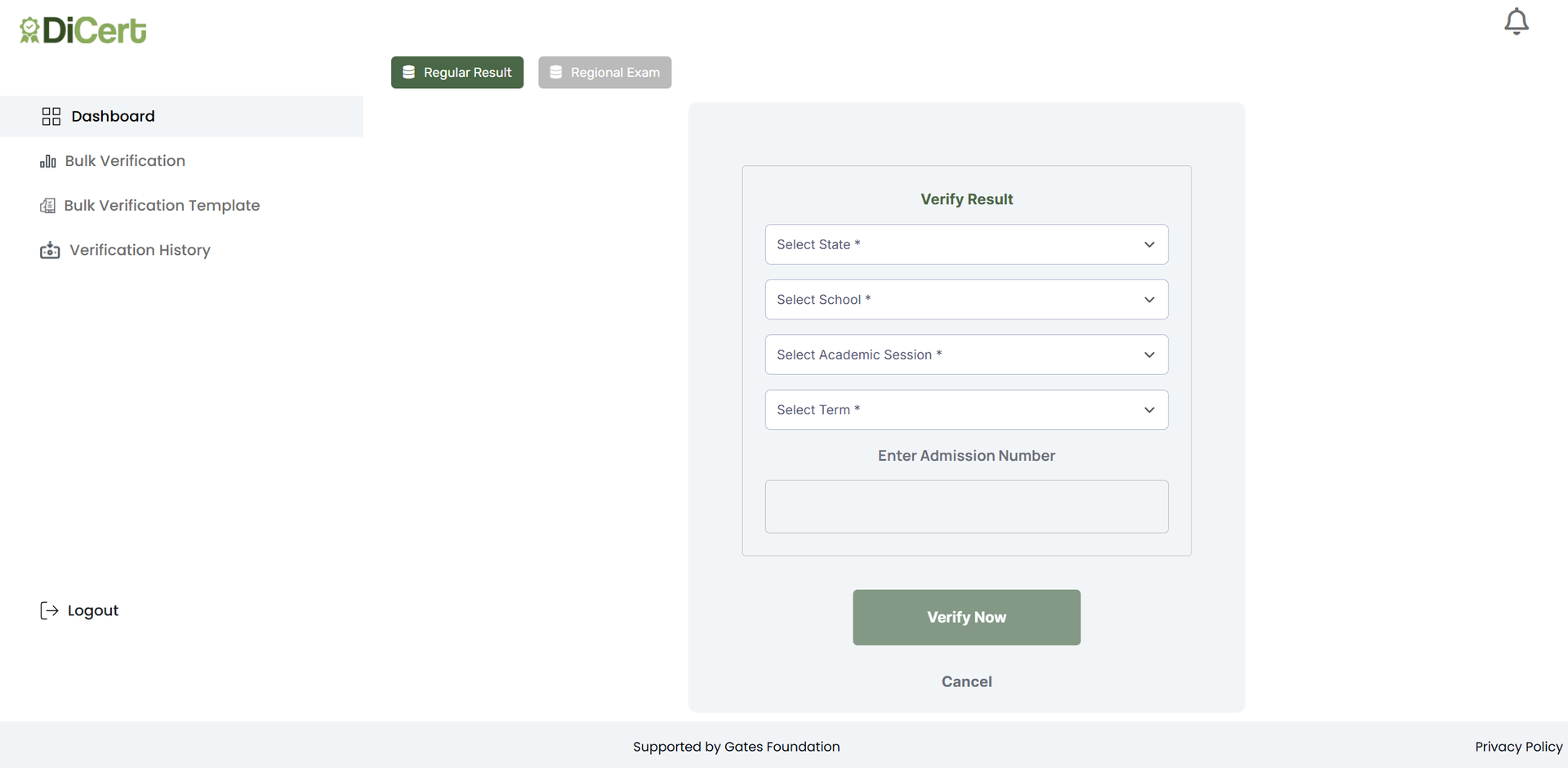
How to Verify a Result
At the top of the page, select Regular Result or Regional Exam.
Regular Result: Do the following to verify a regular school result:
- Select State – Choose where the school is located.
- Select School – Choose the school name.
- Select Academic Session – e.g., 2023–2024.
- Select Term – First, Second, or Third term.
- Enter Admission Number – The student’s unique ID.
- Click Verify Now.
Regional Exam : Do the following to verify a regular school result:
- Select Verify Certificate.
- Enter Certificate ID – The unique ID on the certificate.
- Upload Certificate – The system will read the QR code to cross-check details.
- Click Verify Now.
Bulk Verification
This page opens a modal that prompts you to upload a file containing the list of results or certificates you want to verify. The file must follow the correct format (template) based on the result type.
Bulk Verification
This section contains downloadable templates for both Regular Result and Regional Exam. Download the appropriate template, fill it with your verification data, and use it when performing a Bulk Verification.
Verification History
This page shows a record of all verifications you have carried out, including details such as date, status, result type, and certificate info.