
School Admin Guide
This guide explains how school administrators can register, log in, and manage classes, teachers, and results in the EduCert platform.
Sign Up
- Visit https://educert.ng
- Scroll down the homepage and, in the Schools’ Card, find the option to create an account.
- Fill in the required information:
- School Name (optional)
- Admin Name
- Admin Email Address
- Admin Phone Number
- State
- LGA
- School Type
- Password
- Click Create Account.
Login
- Go to https://educert.ng
- At the top-right corner of the homepage, click Sign In.
- Enter your email address and password.
- Click Sign In.
Dashboard Overview
The School Admin Dashboard is the central hub for managing teachers, students, classes, and academic results at the school level. It allows admins to monitor performance, verify certificate data, and ensure that all the academic information teachers submit is accurate and complete.
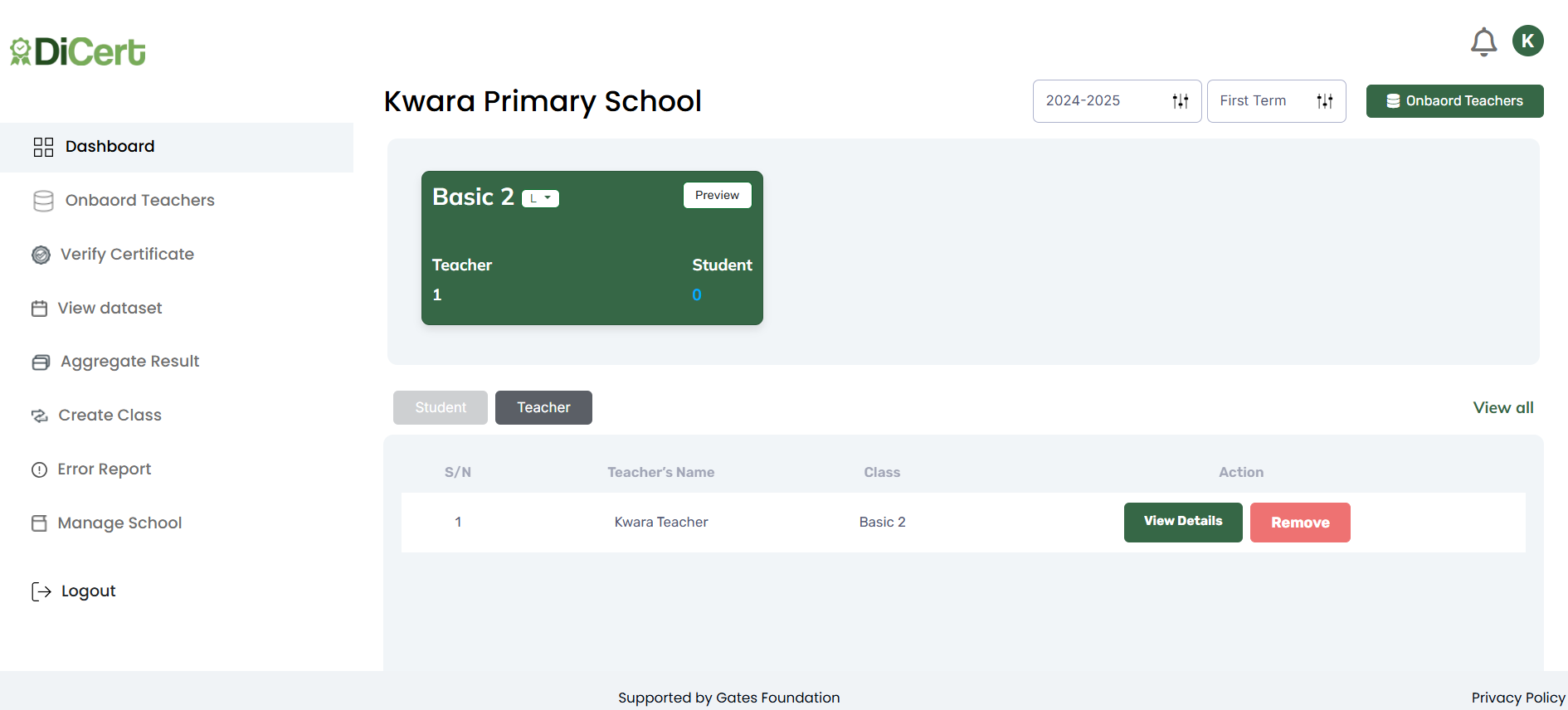
School Information (Top Center)
- School name (e.g., Lincoln High School)
- Academic session selector
- Term selector
- Notification bell
- User icon
- Onboard Teachers button
Class Summary
Each class is shown as a card with:
- Class name
- Number of teachers
- Number of students
- A dropdown to select the class’s sub-arm (if applicable). This dynamically populates the associated data table.
- A “Preview” button allows you to view class-specific data.
Student & Teacher Tabs
- Toggle between Student Records (default) and Teacher Records
- Filter by Status: Approved, Rejected, or Pending
Student Result Table
This is a table displaying the list of registered students for the selected class/session with the following columns:
- Serial Number (S/N).
- Student Name: Full name of the student.
- Candidate Number: Unique ID assigned to the student.
- Status: Shows whether a student’s result has been Pending, Approved or Rejected.
- Action Buttons:
- Preview: View detailed scores or a certificate before approval.
- Approve (Green): Confirms that the result is correct.
- Decline (Red): Rejects the result if there are errors.
Each row indicates the student’s approval status (e.g. Approved or Rejected).
Bulk Actions
To streamline workflows, admins can take actions on multiple students at once
- Bulk Approval — approve all pending results
- Bulk Decline — reject all flagged results
- View All — see results for all classes
Sidebar Navigation
- Dashboard: Returns you to the Main Dashboard.
- Add Teachers: Add and manage teacher accounts in the school.
- Verify Certificate: Check the authenticity of a student’s certificate.
- View Dataset: View uploaded result data for each class.
- Aggregate Result: Compiles the aggregate score for each subject in a class.
- Create Class: Set up new classes and assign teachers.
- Logout: Logs the school admin out of the platform.
Workflows
How to Onboard Teachers
- Log in to the EduCert platform as a school admin.
- On the left sidebar on your dashboard, click “Onboard Teachers”.
- On the modal window, fill out the teacher’s information, including the following:
- Name.
- Email Address.
- Class Type.
- Sub Class.
- When you are done, click the “Onboard Teachers” button.
- The teacher will receive an email with instructions on how to complete their onboarding and activate their account. You will now see their name listed under the selected class.
How to View the Teachers in a Class
- Log in to the EduCert platform as a school admin.
- From the class summary section, click on the preferred class. Alternatively, you can select the class’s subclass from the dropdown.
- Click the “Teachers” button, and you will see a table containing the list of teachers in the class.
- To view more information about a teacher, click the “View Details” button next to their name.
- To remove a teacher from a class, click the “Remove” button next to their name.
How to Verify Certificates
- Log in to the EduCert platform as a school admin.
- On the left sidebar on your dashboard, click “Verify Certificates”.
- On the modal window, select the following:
- State.
- School.
- Admission Session.
- Term.
- Enter the student’s admission number.
- Click “Verify Now”.
Aggregate Results Workflow
The Aggregate Result section displays the compiled average scores across all subjects for students in a selected class. It provides a quick summary of academic performance per subject, aiding administrative oversight and decision-making.
- Log in to the EduCert platform as a school admin.
- From the left sidebar menu, click “Aggregate Results”.
- Select the preferred class. This opens a detailed view showing a table of subjects and their corresponding aggregate scores.
- The table displays the subject name and aggregate score.
- Use the vertical scroll bar to browse through all available subjects and scores.
- To return to the Main Dashboard, click the “X” (close) button in the top-right corner of the pop-up panel.
Create Class Workflow
The Create Class feature allows school admins to set up new classes for a specific academic session and assign teachers to manage those classes. This step is essential before teachers can upload results or generate certificates for students.
- Log in to the EduCert platform as a school admin.
- From the left-hand menu, click “Create Class”. A form window will pop up for you to fill in the class details:
- Class Type: Select from the dropdown (TVET 1, BECE, etc.).
- Class List: A to E.
- Academic Year: Choose the academic session (e.g. 2025–2026).
- Sub-Class Name: Enter a unique subclass name.
- Teachers Assigned: Select one or more teachers from the dropdown.
- Click the “Add Teacher” link below the Teachers Assigned dropdown if the teacher you want is not listed. This redirects you to the Onboard Teachers workflow. Once the teacher is added, return to this form and continue creating the class.
- After filling in all fields, click the “Create Class” button to save the class. You will get confirmation once the class is successfully created.
Error Report Workflow
This page allows the admin to review and manage all student-reported errors. The super admin is responsible for verifying whether the reported error is valid and acting when necessary. The error report table includes the following columns:
- Student Name: Name of the student who submitted the report.
- Email: Student’s email address.
- Certificate: The type or name of the certificate/result.
- Error: The actual error message that the student submitted.
- Status: Current status of the error (e.g. Pending or Resolved).
- Action: A button to take action on the report.
For each pending report, there is a “Resolve” button. The following happens when the admin clicks the button:
- A modal opens, allowing them to confirm and process the correction.
- Within the modal, click “Resolve Report” to finalise the update.
- Once submitted, the status is updated from Pending to Resolved.